Add and Manage Medical Representatives
Managers can add MRs to their team and open MR-level work views for relevant activity, attendance and follow-up information.

Easy E-Detailing combines professional digital doctor detailing with Manager + MR team workflows, doctor work, follow-ups, attendance, field activity and supported reporting while keeping the presentation experience simple for field users.
Manager and MR accounts stay separate and role-focused. A Manager can sign in on their own phone, while each linked MR uses the MR field workspace on a tablet. Managers can add MRs and review supported team work, attendance, doctor activity and follow-ups without mixing the two dashboards.
Managers can add MRs to their team and open MR-level work views for relevant activity, attendance and follow-up information.
Managers get team controls and MR-wise visibility on the Manager side; MRs get a simpler tablet field workspace without unnecessary Manager-level administration.
Review supported doctor activity, follow-ups, pending work and current-day team status from the Manager side.
Manager summaries bring current doctor activity, follow-ups and pending work into a team-level view. Where available, the Manager can move from a summary into MR-wise detail.
Review supported same-day doctor activity.
Keep due follow-up work visible instead of relying on memory.
Surface supported work that still needs action.
Review available working-day status and attendance information for linked MRs.
Managers can keep supported project-management work together while the core e-detailing content structure remains familiar.
Team project sharing is not described here as instant cloud synchronization; only production-verified sharing behavior should be promoted.
The MR side keeps day-to-day field work together instead of spreading it across unrelated screens.
MRs can record Start Day and End Day with the required live photo, time and GPS-based location. Managers can review submitted attendance information through the linked team workflow.
Supported working-day timings can be configured for the team, including normal Start Day, Half-Day cutoff and End Day time. No universal fixed cutoff is stated here.
Supported attendance workflows can store GPS coordinates while showing useful place information such as a mapped building, road, locality, village, city or district when mapping data is available.
Place detail depends on available mapping data and GPS conditions. Easy E-Detailing does not promise exact shop identification.
Doctor List, doctor-wise detailing, visit history, next actions and follow-up work are designed to stay connected around the same field workflow.
Find the doctor, review relevant information and move into the required detailing workflow without switching to an unrelated tool.
Follow-Up Due, missed or overdue work and supported pending actions stay visible so the next task is easier to identify.
Manager reporting can summarize available doctor, follow-up, MR and field activity records without claiming forecasting or AI performance scoring.
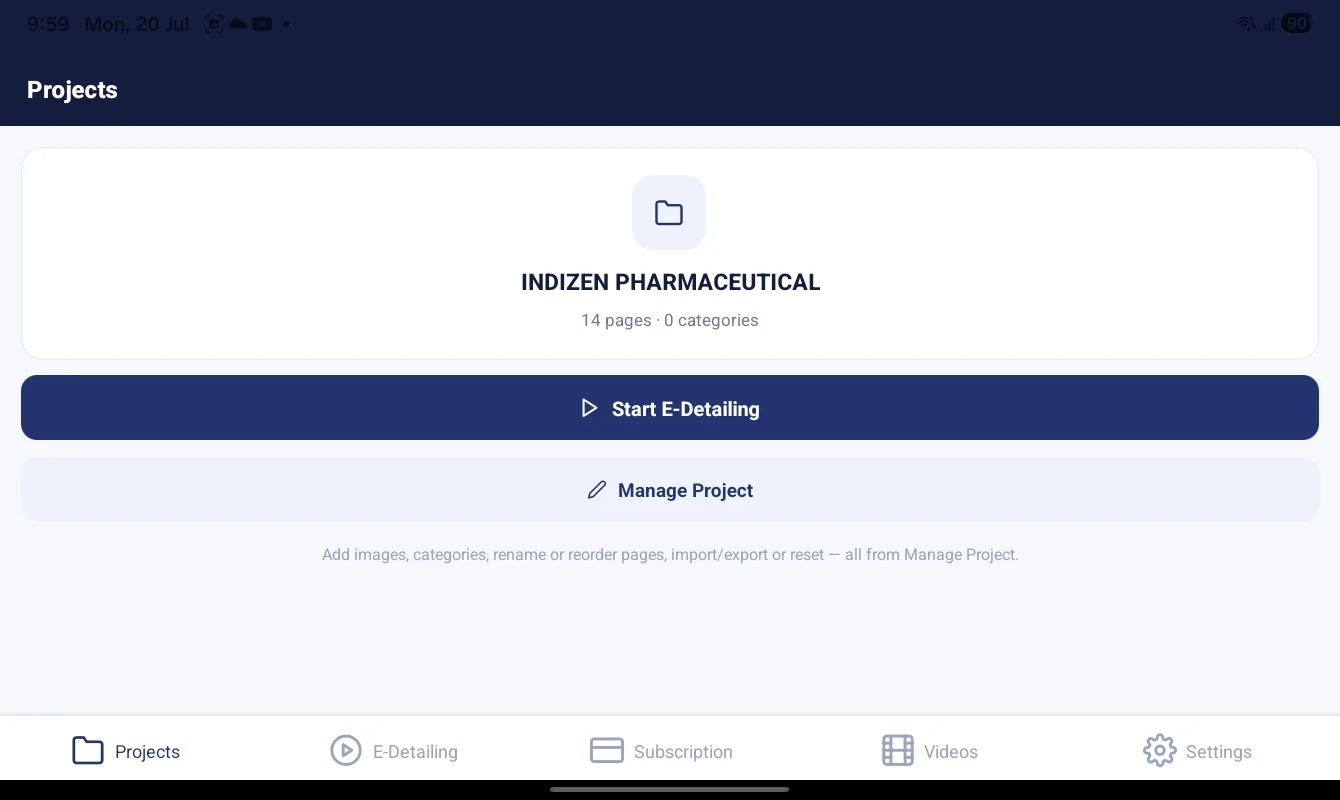
Keep each brand, campaign or product line in its own project so nothing gets mixed up.
Example: A rep working two divisions keeps one project per division and switches between them in seconds.
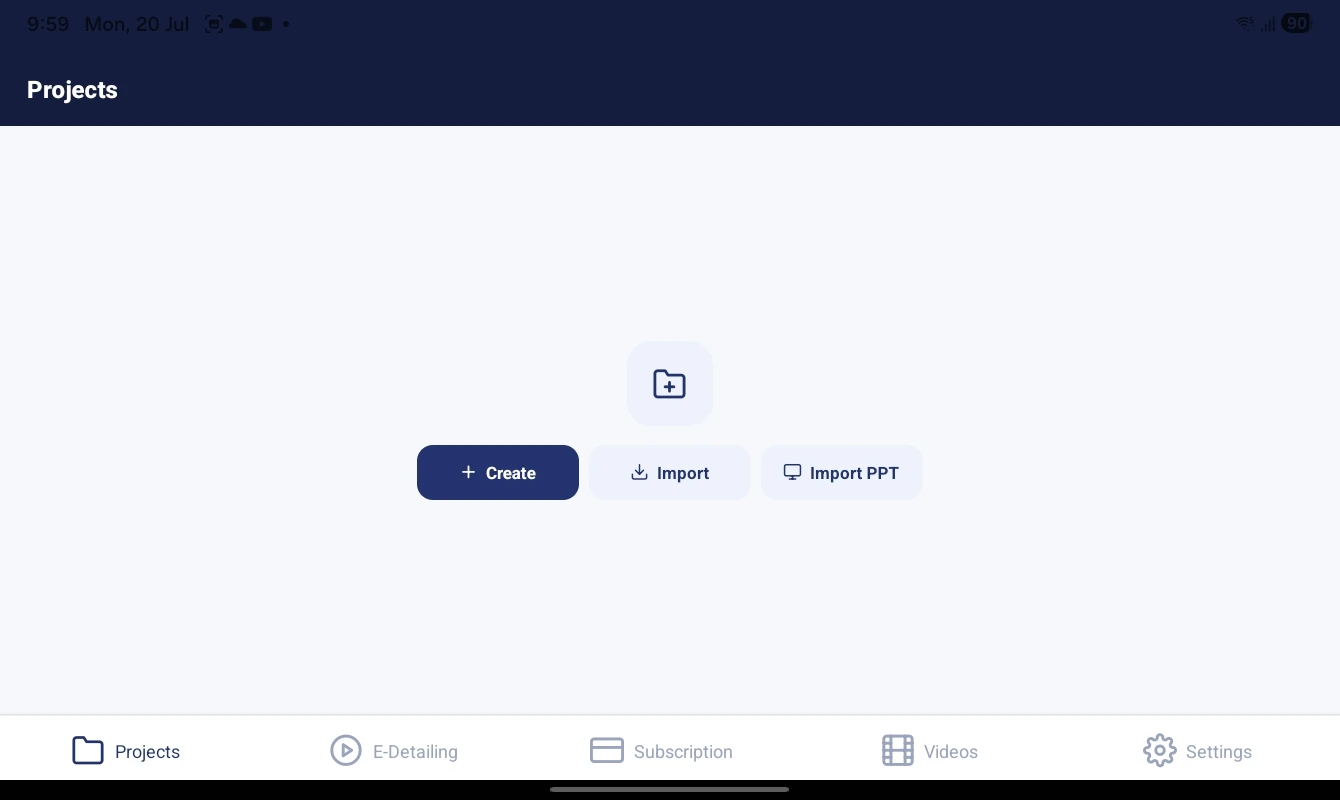
Bring in the content you already have. Import PDF files and images to build detailing pages; supported PPT/PPTX import depends on your production build.
Example: Import an approved product PDF and it becomes a set of pages you can reorder and present.
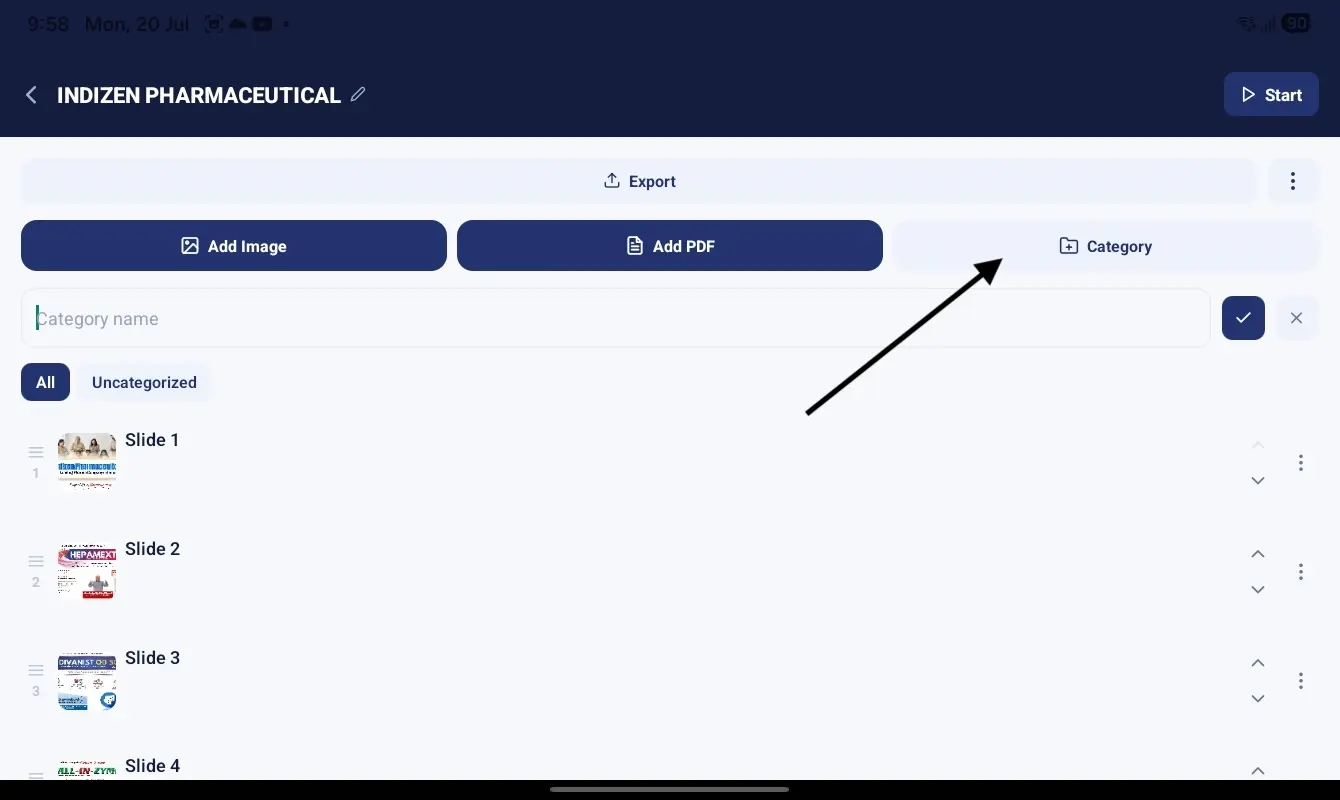
Group pages into categories, then rename, reorder, copy, move or delete any page as your material changes.
Example: Keep "Cardiology" and "Diabetes" as separate categories and jump straight to the right one in a meeting.

Present distraction-free with smooth page transitions, and switch to landscape for a comfortable tablet view.
Example: Hand the tablet across the desk in landscape and swipe through the pages together.
Once you sign in and activate a subscription, your projects and presentations work offline. Login, payments, subscription verification, account actions and training videos still need internet.
Example: Present in a clinic basement with no signal — your pages are already on the device.

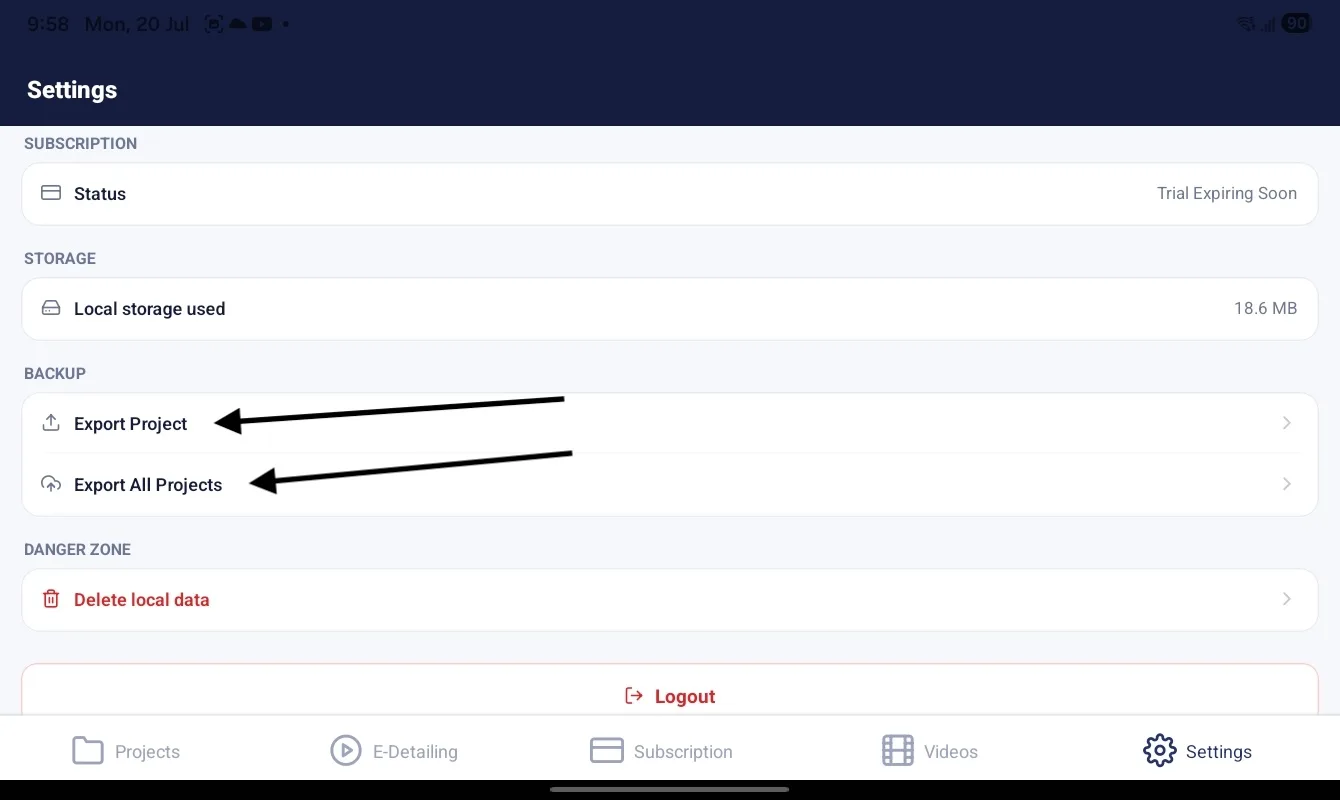
Export a project as a portable backup and import it to restore your work — useful when moving to a new device.
Example: Replacing your tablet? Export from the old tablet, import on the new one and keep going.
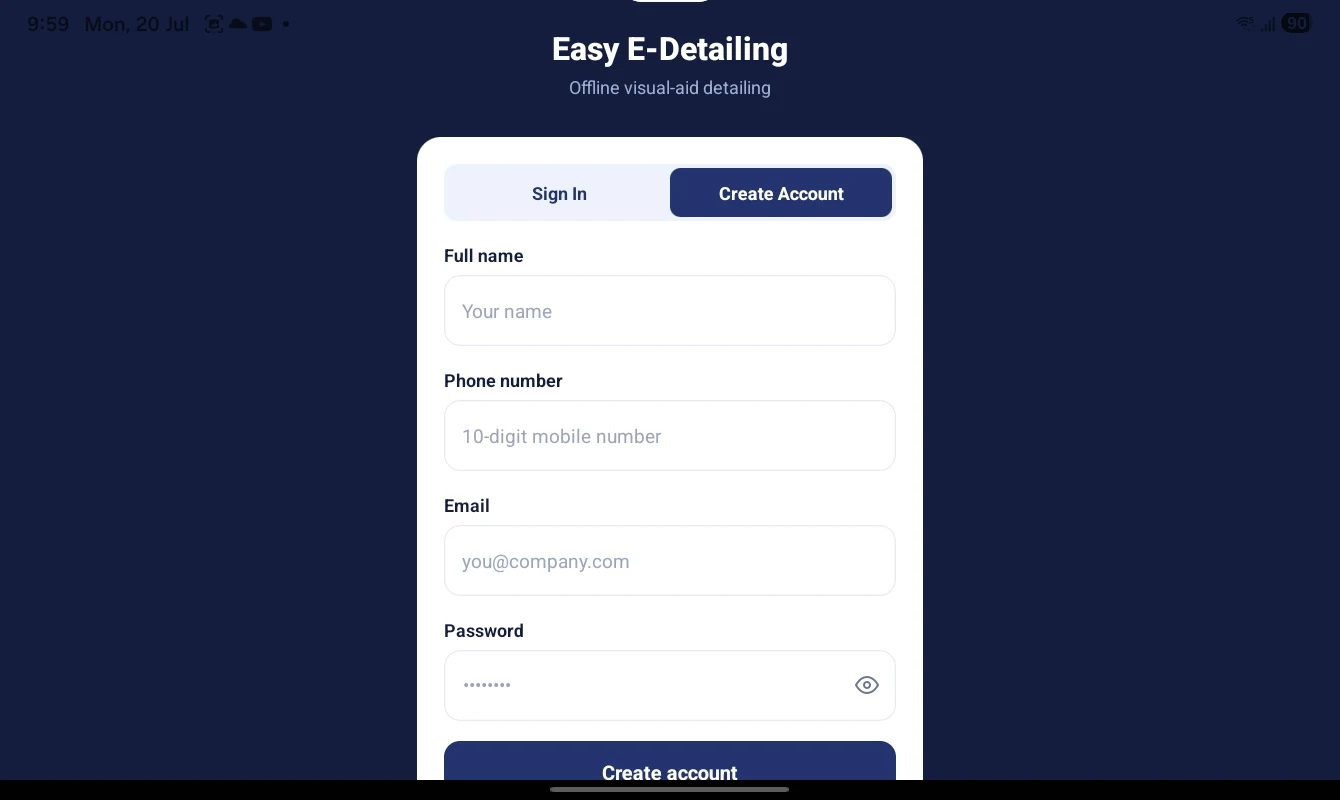
Create your account with the required details, then sign in to access your activated workspace on a supported tablet.
Example: A new team member registers once, activates access and returns to the same organized detailing workspace.
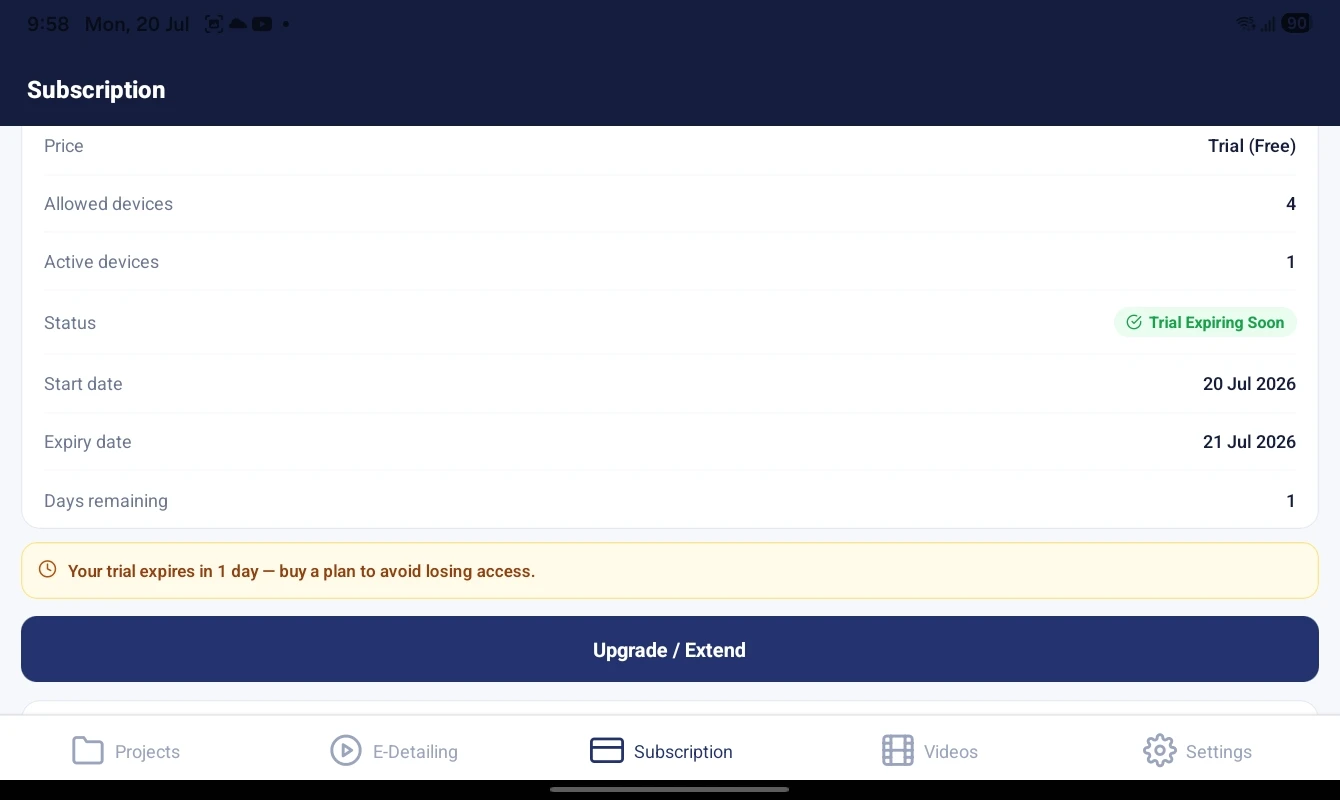
See your plan and expiry, manage device access and use secure, authenticated login. Training videos are available online.
Example: Check your remaining days before a busy week so there are no surprises in the field.
 Screenshot coming soonFull Name · Short Name · Smart Short
Detect imported visual-aid pages and prepare readable labels using Full Name, Short Name or Smart Short formats. Capital Name keeps the selected format consistent.
Every suggestion remains reviewable before saving, so the user can correct an unclear product name or abbreviation.
Explore Automatic Page Naming →The website and Android APK use the same Easy E-Detailing knowledge service. Type a question in either chat, or tap the microphone in the APK to speak. The Android app sends the transcript through the same conversation and can read the answer aloud.
App guidance: Ask where a setting or feature is and receive clear, step-by-step instructions with working support, pricing and in-app links.
App actions: Ask the assistant to open Dashboard, E-Detailing, Plan or Settings, or prepare supported project, category and page actions.
Safe confirmation: Project-changing actions require confirmation, and destructive actions require an additional confirmation before anything is changed.
Conversation memory: The APK keeps the conversation ID on the signed-in device so follow-up questions remain connected; New Chat starts a clean conversation.
Internet requirement: AI chat and online Android speech recognition need internet. Prepared projects and presentations continue to work offline after activation.
The microphone is used only after the customer starts voice input. Recognition and speech availability depend on the Android services installed on the device. The assistant does not request or display passwords.
Explore Ask AI + Voice Assistant →